Create a Custom Field⚓︎
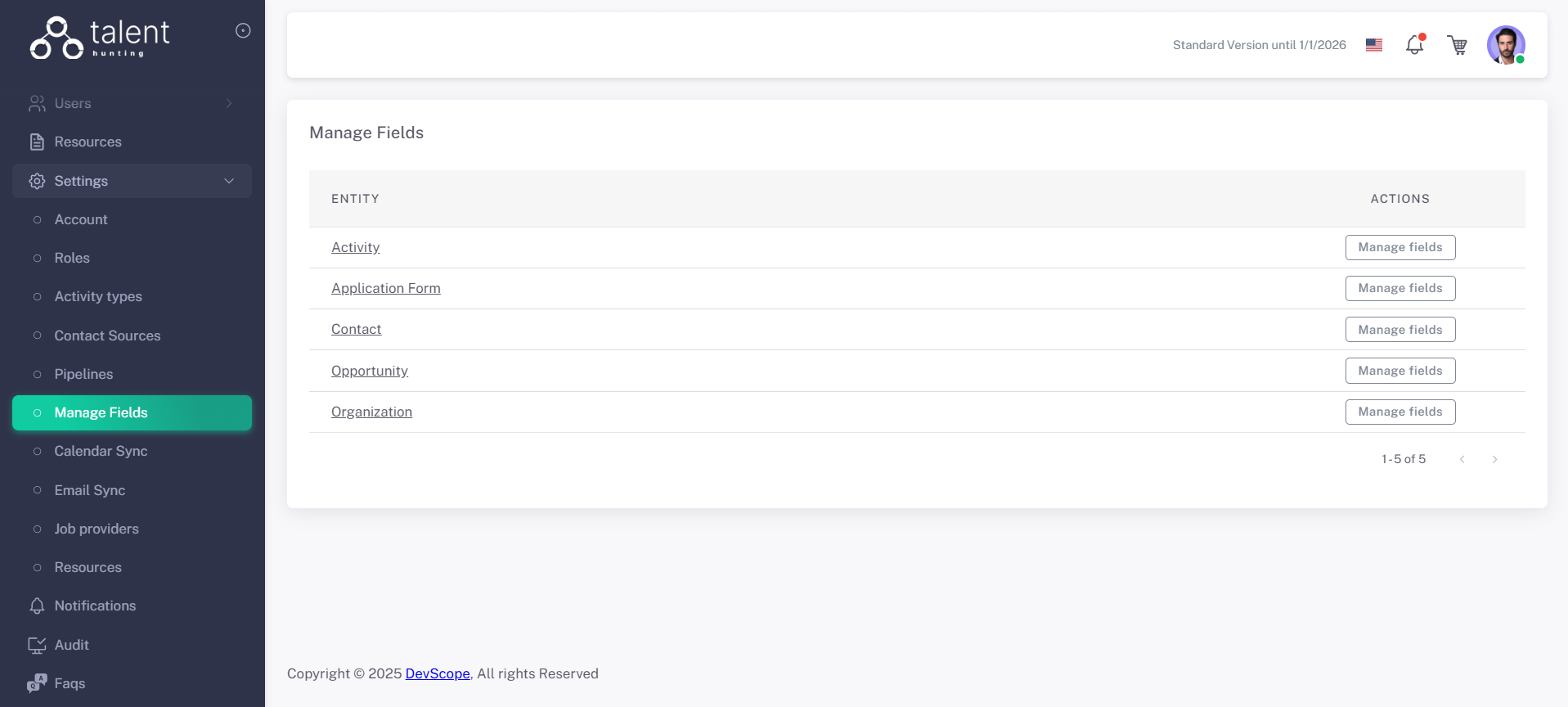
1 - Go to the Manage Fields Section⚓︎
.png)
2 - Choose the Entity you want to add the Custom Field and Click “Manage Fields”⚓︎
3 - Navigate to the Custom Fields Tab and click “Add +”⚓︎
.png)
4 - Fill in the Custom Field Details⚓︎
- Give it a Code
- Set the Editor Type (will define the input used for that field data)
.png)
5 - Save the Custom Field⚓︎
Click Save. The new custom field was created, now its name/translations need to be set to be displayed on its Entity form.
6 - Navigate to the Resources Tab and click on the "Edit" Button associated with the Custom Field you just created⚓︎
.png)
7 - Fill in the Custom Field Resources⚓︎
- Set the field translations
.png)
8 - Save the Custom Field Resources⚓︎
Click Save. The new custom field, along with its translations, has been successfully created. This field will now be available in the "Other Fields" section on its associated entity form.